Digital Whiteboards for Client Workshops: Shared Editing with Vibe
Shortlist Vibe Board S1 with Vibe Canvas when the client needs a continuing shared workshop canvas. Compare that arrangement with a room display connected to the client’s established software workspace when the engagement must stay in their existing system. Choose around the editable deliverable and client access, rather than the screen alone.
- Define whether the client needs editing access or a reference copy.
- Choose the working workspace alongside the room hardware.
- Send one clear handoff containing the working link, decisions and next actions.
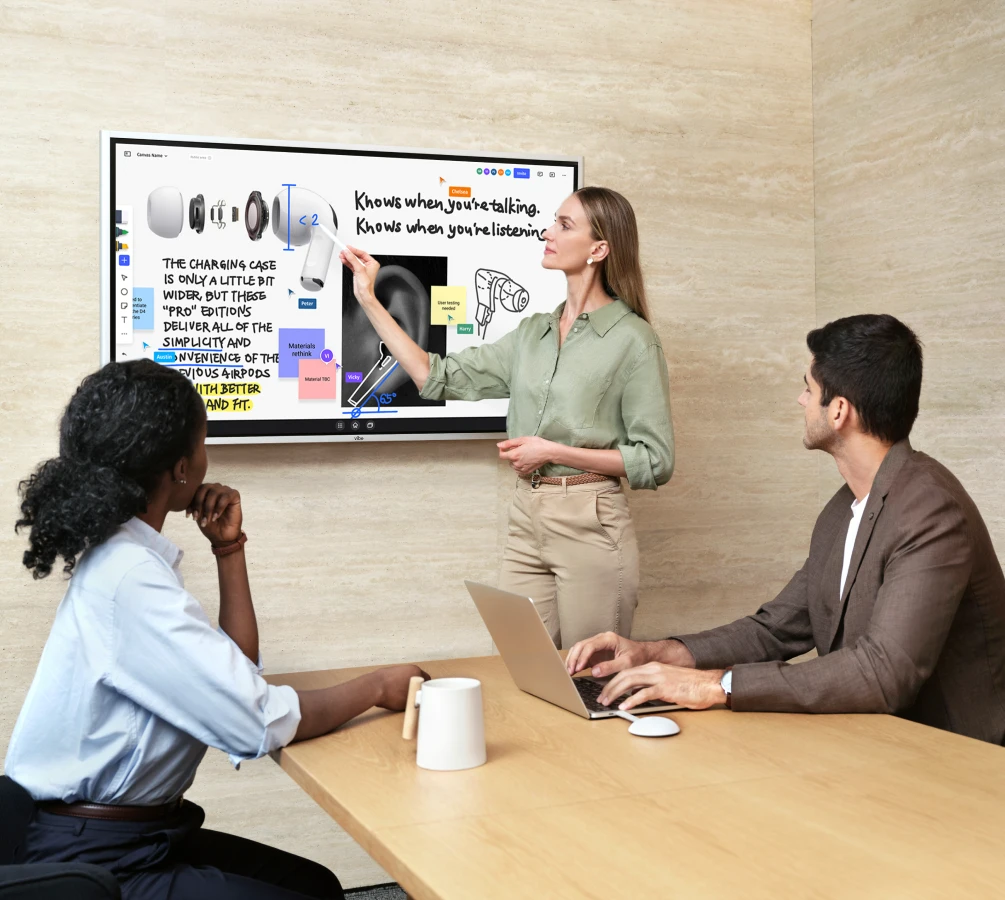
Quick Verdict: choose the continuing workspace first
For an editable client handoff, shortlist the Vibe Board S1 and Canvas arrangement. For a fixed readout, choose a clearly labeled reference copy. For an engagement confined to the client’s existing application, retain that workspace and evaluate the room display separately.
| Handoff arrangement | Choose it when | Settle before the workshop |
|---|---|---|
| Vibe Board S1 with a shared Vibe Canvas project | The discussion will continue in the working canvas | Define the owner and recipients. |
| The client's established workspace used in the room | The engagement requires work to remain in the client's existing system | Supported room configuration and collaboration method |
| Existing touch display and the client’s computer | The client wants to retain its established computer-based workspace | Choose the computer and drawing application. |
Consult the sharing instructions. Decide how narrowly the client project should be shared before sending invitations.
Compare client access and the handoff boundary
The useful distinction is between a continuing invitation and a finished reading copy. For a shared Vibe Canvas project, the sharing guide states: “Enter the email address and select the access level you wish to grant to the individuals you want to share the canvas with.” Choose that arrangement alongside the client’s expected involvement after the session.
Vibe's presentation and annotation guide describes the collaboration result.
Now, you and your teammates can leave notes and annotations on the canvas.
Consider a client who wants to add observations after a workshop, alongside a sponsor who only needs the final readout. Assign a task to each audience. Keep the working-project link and the fixed summary clearly labeled.
Check the administrative arrangement before a client-owned handoff. If the contract requires the client to own the workspace, agree the account and administrative arrangement before the workshop. Do not promise an ownership transfer merely because you can share a link.
Invite the client during the demonstration
Consult the product overview.
Ask the client to join the intended project from their own computer during the demonstration. Confirm the chosen access level for the actual recipient. Keep account ownership as a separate decision.
Compare this with handing over screenshots only: choose the shared working project when the client must continue contributing. Choose the fixed readout when the sponsor needs a record of agreed decisions. Choose the intended artifact for each recipient.
Use scenario: a customer-journey workshop
Consider a consultancy facilitating a customer-journey workshop. Prepare sections for observations, decisions and open questions. During the discussion, label the agreed changes beside the relevant part of the journey.
A useful closing message distinguishes the continuing workspace from the readout. For example, an illustrative handoff note could say: “Use the workshop canvas for follow-up comments. The summary records agreed decisions. The named workstream owners will update their next actions before our follow-up.” Add the actual project link, recipients and responsibilities for your engagement. Consult the Canvas overview for saving and exporting instructions.
Choose the room hardware around group contribution
The Vibe technical specification chart lists these parameters for Vibe Board S1 55-inch:
| Parameter | Published specification |
|---|---|
| Display | Diagonal Screen Size 55" |
| Resolution | Optimum Resolution 3840 (H) x 2160 (V) @ 60Hz |
| Touch input | Touch Points 20 Simultaneous Touch Points |
Use the touch-input parameter when planning hands-on contribution at the room display. Keep that hardware parameter separate from a count of remote collaborators. For the room layout, bring a representative journey map and ask participants to read its labels from their expected seats. Choose display placement around the workshop format.
For broader workspace context, see Vibe's Canvas update overview.
FAQ
Which Vibe setup should an agency shortlist for editable workshop handoffs?
Shortlist Vibe Board S1 with the agreed Vibe Canvas project and sharing arrangement. Test the client's intended access with a representative project before committing to the delivery workflow.
Is an exported reading copy the same as the working canvas?
Keep them separate in the handoff. Identify the working-project link for continued collaboration and label any fixed copy for reference.
Can a client join from a browser?
“Work together on an infinite canvas from any device – Vibe Board, web browser, tablet, or smartphone.”
Confirm the intended access with the client before the workshop.
Does sharing a link establish who owns the workspace?
Treat ownership as a separate engagement decision. Agree the account and administrative arrangement before promising the client a workspace handover.